Sending a designed HTML email from Gmail, explained simply
Why a beautiful email can arrive empty, what Gmail keeps and removes, two reliable ways to paste a designed email into Gmail, the three traps to avoid, and a short Python checker for your HTML.
You design a clean email with a banner, pictures and coloured buttons. In Gmail's compose window it looks perfect. You press send, and the message that arrives is empty.
This happened to me, and the reason is simple: Gmail has no HTML editor, and it quietly throws away anything it does not trust. Once you know exactly what it keeps, designing an email for Gmail takes about ten minutes, and it works every time.
$$ \text{Write HTML} \;\rightarrow\; \text{Host images} \;\rightarrow\; \text{Open in browser} \;\rightarrow\; \text{Copy} \;\rightarrow\; \text{Paste in Gmail} \;\rightarrow\; \text{Test} $$
An analogy. Think of Gmail as a strict mail clerk. A letter in a plain standard envelope goes straight through. A letter that comes with its own folded cardboard box, extra instructions taped on the side, and photos glued inside is simply refused. Your job is to put the design into the plain envelope.
1. Why Gmail needs a workaround
Gmail lets you format text (bold, colour, links, images) but gives you no place to type code. To send a custom design, you build it as a small web page first and then bring it into the compose window. The catch is that Gmail cleans the message when you send it, and the cleaning is silent.
Every HTML email that survives has the same five parts:
| Part | What it is | In practice |
|---|---|---|
| Container | One block that holds the whole email | A single <div> |
| Layout | Rows and columns | <table> elements |
| Styling | Colours, sizes, spacing | Inline style="..." on each element |
| Images | Banner, pictures, thumbnails | Public https:// links |
| Actions | Links and buttons | <a> tags styled as buttons |
The nice part: you do not need any email software. A text editor and a browser are enough.
2. What Gmail keeps and what it removes
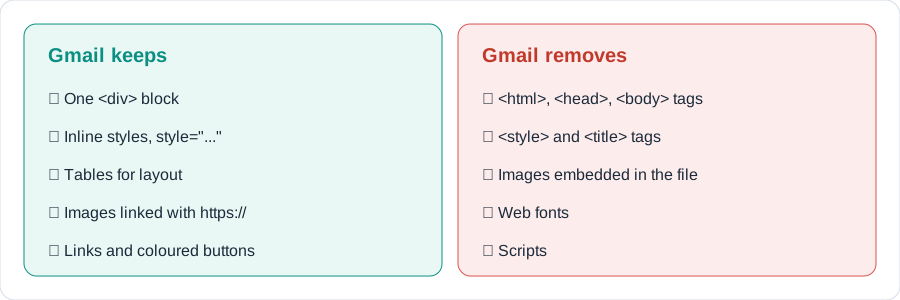
| Rule | Why it matters |
|---|---|
Put the whole email inside one <div> |
A full web page can arrive as an empty email |
No <html>, <head>, <body>, <title> or <style> tags |
Gmail discards them |
| Write every style inline | There is no stylesheet to read |
| Use tables for the layout | Tables look the same in every email app |
Link images with a public https:// address |
Images embedded in the file are dropped |
| Use common fonts such as Arial | Web fonts do not load |
3. Watching it fail, then work
Here is what happened when I tried three different ways, with the same design each time:

| Attempt | What I pasted | Result |
|---|---|---|
| 1 | Full web page, images embedded in the file, copied from the browser | Text only. The images showed as plain words |
| 2 | The same full web page, inserted with Inspect and Edit as HTML | Looked perfect in compose, but arrived empty |
| 3 | One <div> block, images hosted online, copied from the browser |
The full design arrived |
The design was identical in all three. Only the packaging changed. That is the whole lesson: the design is not the problem, the wrapper is.
4. Two ways to get the design into Gmail
Method 1: copy and paste from the browser (fastest)
- Double-click your
.htmlfile, or right-click it, choose Open with, then Chrome. You should see the finished design. - Press Ctrl+A to select everything, then Ctrl+C to copy.
- In Gmail, click Compose, click inside the message body and press Ctrl+V.
- Add the recipient and subject, then send.
On a Mac, use Cmd instead of Ctrl.
Tip. If only plain text appears, you copied from a code editor. Copy from the browser page instead.
Method 2: insert the code with Inspect
Use this if Method 1 loses part of the design.
- Open the
.htmlfile in Notepad (not in the browser) and copy all the code. - In Gmail, click Compose, then right-click the message body and choose Inspect.
- Right-click the highlighted line and choose Edit as HTML.
- Delete the existing code, paste yours, and click outside the box.
- Close the Inspect panel. The design now shows in the compose window.
Note. A browser extension such as Free HTML Editor for Gmail adds an "insert HTML" button, so you can skip the Inspect panel if you do this often.
5. Three traps (and their simple fixes)
Trap 1: the forbidden tags
A complete web page starts with <html>, <head> and <body>, and often has a <style> block. Gmail discards all of them. The compose window can still show the page, so you only discover the problem when the empty email arrives. Fix: write the email as one <div>, with every style inline.
Trap 2: embedded images
It is tempting to put a picture inside the file itself, so everything travels together. Gmail drops these images. Fix: upload the image somewhere public and link it with https://. Your own website, a GitHub repository (use the "raw" link) and YouTube thumbnails (https://i.ytimg.com/vi/VIDEO_ID/hqdefault.jpg) all work.
Trap 3: the same email looks different in two accounts
If the design shows in one Gmail account but not in another, the cause is almost always a setting, not the email. Check Plain text mode (three dots at the bottom right of the compose window, it must be off) and Settings, General, Images, where Always display external images should be selected.
6. Code: a complete Gmail-safe email
This skeleton follows every rule from section 2. Save it as email.html, replace the example links, and open it in your browser:
<div style="background:#eef2f7;padding:20px 8px;font-family:Arial,Helvetica,sans-serif;color:#1b2a3a;">
  <table width="600" cellpadding="0" cellspacing="0" align="center"
         style="width:100%;max-width:600px;background:#ffffff;margin:0 auto;">

    <tr><td>
      <img src="https://example.com/banner.jpg" alt="Banner" width="600"
           style="display:block;width:100%;max-width:600px;height:auto;border:0;">
    </td></tr>

    <tr><td style="padding:28px 32px;font-size:16px;line-height:26px;">
      <h1 style="margin:0 0 12px;font-size:24px;color:#0a1523;">A clear headline</h1>
      <p style="margin:0 0 18px;">Two or three short sentences that say why the reader should care.</p>

      <table cellpadding="0" cellspacing="0"><tr>
        <td bgcolor="#0b8f82" style="background:#0b8f82;border-radius:8px;padding:13px 26px;">
          <a href="https://example.com"
             style="color:#ffffff;font-size:15px;font-weight:bold;text-decoration:none;">Call to action</a>
        </td>
      </tr></table>
    </td></tr>

    <tr><td style="background:#0a1523;padding:18px 32px;font-size:12px;color:#8aa4c2;">
      Why you are receiving this email, and how to unsubscribe.
    </td></tr>
  </table>
</div>
The button is a table cell with a background colour, not a styled link. This is the most reliable way to get a coloured button in email.
7. Code: check your HTML before you paste
This short script looks for the problems from the three traps. It reads your file and prints what it finds:
import re
import sys

html = open(sys.argv[1], encoding="utf-8").read()

checks = {
    "<html>, <head> or <body> tags": r"<\s*(html|head|body)\b",
    "<style> or <title> tags": r"<\s*(style|title)\b",
    "<script> tags": r"<\s*script\b",
    "embedded (base64) images": r"src\s*=\s*[\"']data:",
    "images not linked with https://": r"<img[^>]+src\s*=\s*[\"'](?!https://)",
}

problems = 0
for name, pattern in checks.items():
    if re.search(pattern, html, re.I):
        print("PROBLEM:", name)
        problems += 1

print("Looks Gmail-safe." if problems == 0 else f"{problems} problem(s) found.")
Run it with python3 check_gmail_html.py email.html. A file that follows the rules prints Looks Gmail-safe., and a full web page with embedded images prints one line per problem. You can also download it as check_gmail_html.py.
Test before you send
Send the email to yourself first, then check:
- It looks right on your phone as well as your computer.
- Every image loads and every button opens the correct page.
- Plain text mode is off.
- Nothing is cut off at the bottom. Gmail shortens very long messages and shows a "View entire message" link.
Common problems and fixes
| Problem | Likely cause | Fix |
|---|---|---|
| The email arrives empty | html, head, body or style tags in the code |
Use only a <div> block with inline styles |
| Only plain text appears | Code was copied instead of the rendered page | Use Method 1 from the browser, or Method 2 with the code |
| Images show as plain words | Images are embedded, or external images are blocked | Host images online and allow external images |
| Looks right in one account, not another | Image setting or Plain text mode differs | Compare both settings |
| Buttons have no colour | Button made from a styled link only | Put the colour on a table cell |
| Layout breaks on a phone | Fixed widths | Use width:100%;max-width:600px |
| Message shows "View entire message" | The HTML is very long | Shorten it and use fewer, smaller sections |
The short version
- Gmail has no HTML editor, and it silently removes what it does not trust.
- Build the email as one
<div>with inline styles and table layout. - Link images with public https addresses. Never embed them.
- Method 1: open the file in the browser, Ctrl+A, Ctrl+C, then paste into Compose. Method 2: insert the code with Inspect and Edit as HTML.
- If two accounts disagree, check Plain text mode and the Images setting.
- Always send a test to yourself, on your phone and your computer.
Further reading
- Can I email: shows which HTML and CSS features each email app supports
- On this site: add links here to your related posts, for example your Python or automation tutorials
Try it yourself
- Break it on purpose. Add a
<style>block and a<body>tag to the skeleton from section 6, paste it into Gmail, and send a test. Then run the checker from section 7 on the same file and see what it reports. - Add a second button to the skeleton, in a different colour, and make sure it still works on your phone.
- Replace the banner with an image from your own website or repository. What happens if the link starts with
http://instead ofhttps://? - Open your email in two different Gmail accounts. Do they look the same? If not, which setting explains the difference?